Search Shopping and read the results
On this page
When you search the Shopping tab, Shopping asks many stores at once and shows their answers as product cards under Store prices. Offers for the same product from different stores are put together, so each card is one product with its best offer.
#Search
-
Open the Shopping tab and type what you are looking for.
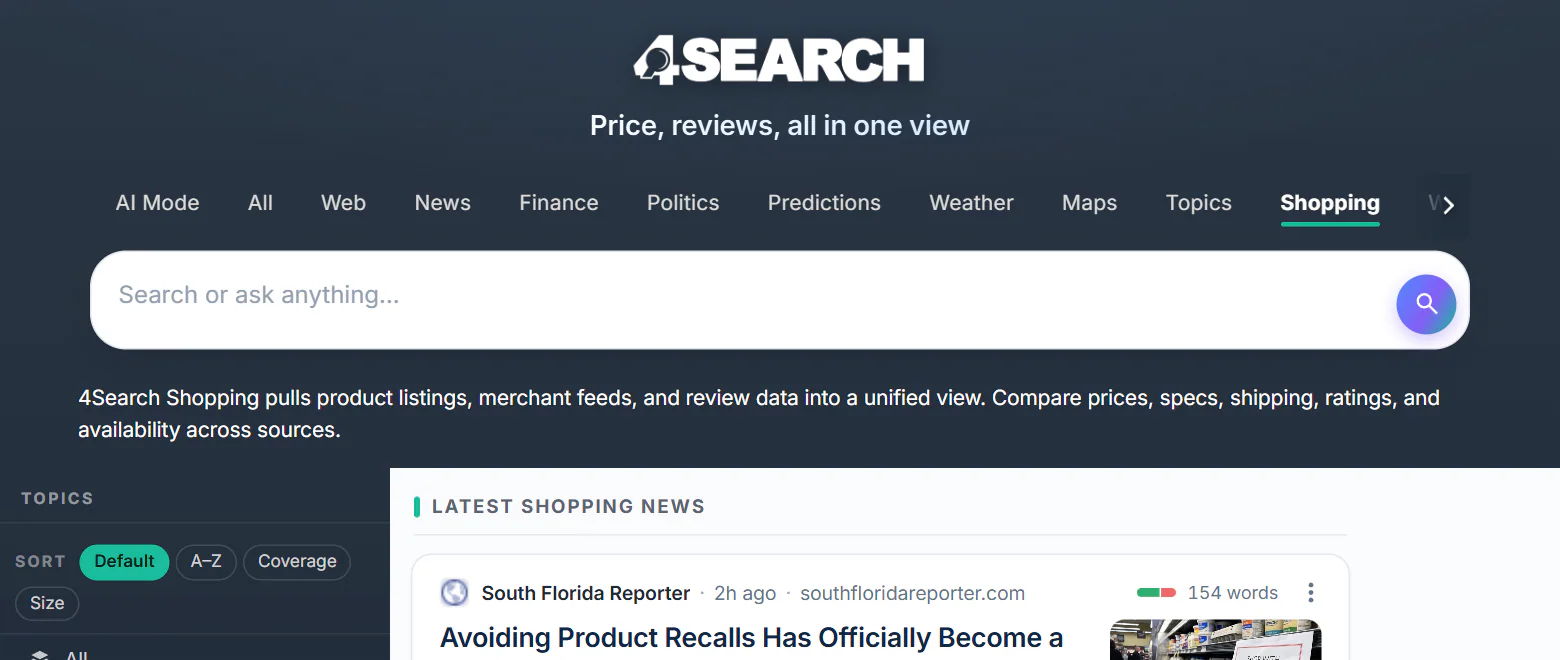
The Shopping home: the tab is selected, and the box searches the stores.
- 1The Shopping tab
- 2Search for a product here
- 3Below: the latest shopping news
-
Press Enter. The page opens at once and Store prices says "Checking stores…" while the stores answer, usually within a few seconds.
-
The cards appear, best matches first.
#What to type
- A brand and model finds that product at the stores that answer and have it:
sony wh-1000xm6. - A kind of product shows a range to choose from:
wireless headphones,wool hiking socks. - A price limit is understood:
under $50,below 200 dollars,$50 to $100,over $30. Only offers in that range are shown. - A condition is understood too:
refurbished(orrenewed),used(orpre-owned),open box. - Shopping words such as
buy,cheap,best price,dealsandfor saleare ignored: they say nothing about the product.
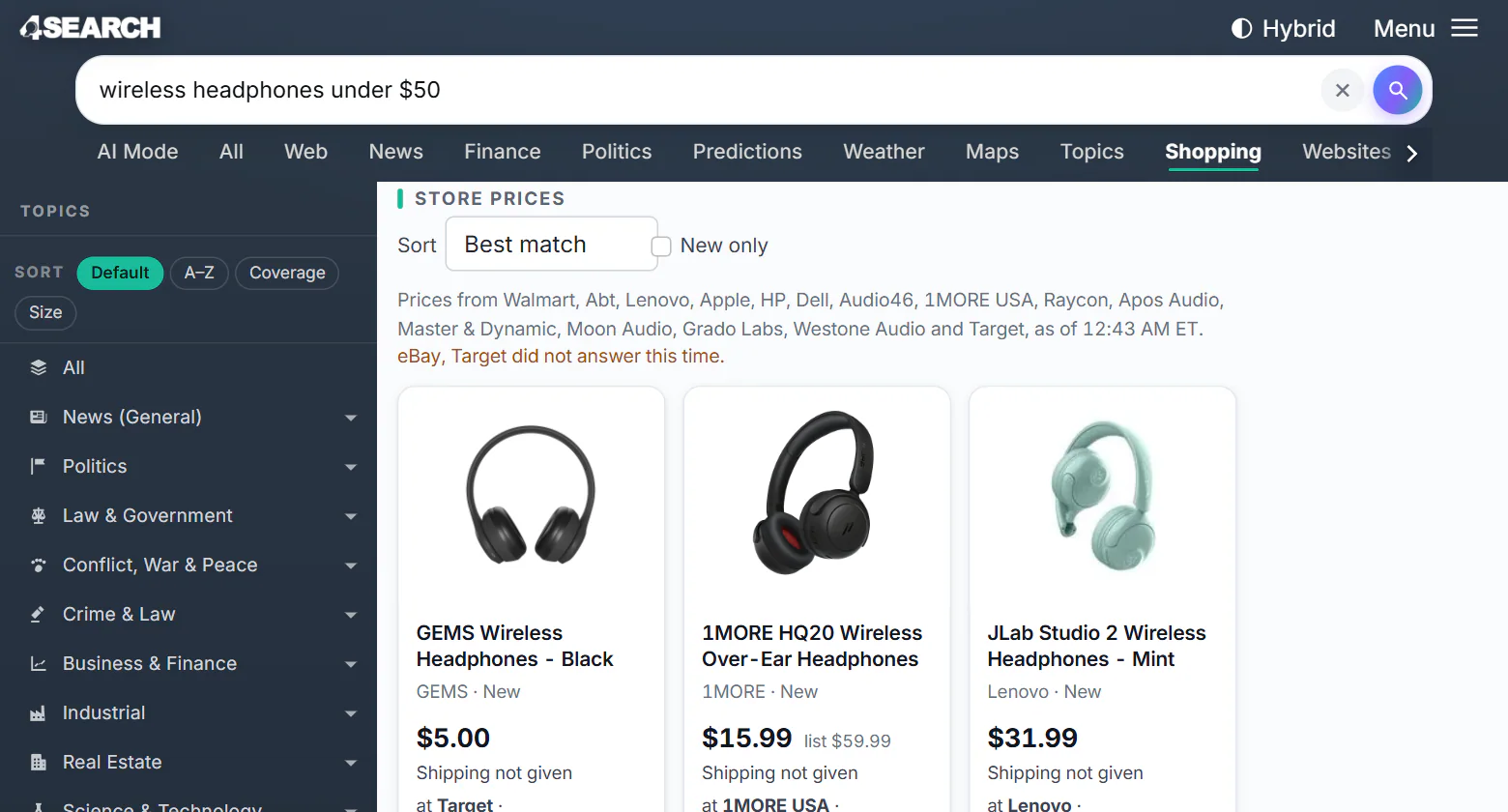
A price limit typed into the search: only offers under $50 are shown.
- 1The price limit is part of the search: under $50
- 2Every price shown is at or under the limit
#A product card
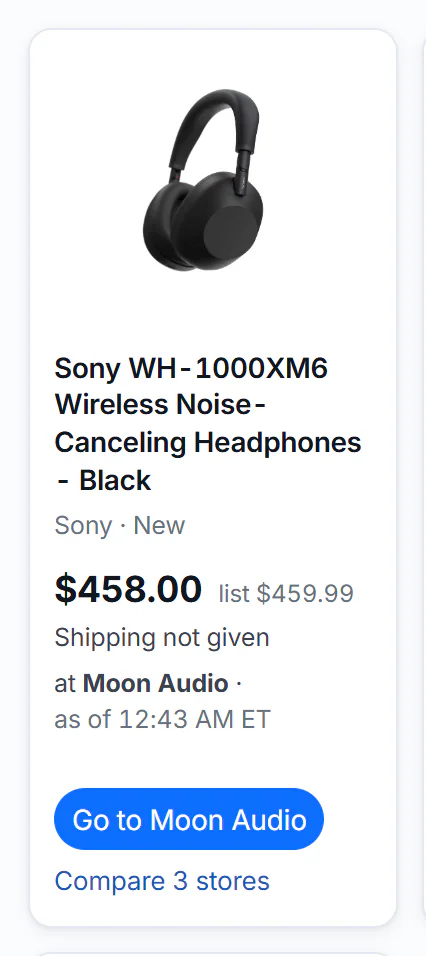
One product card. This one is sold by three stores, so it offers Compare 3 stores.
- 1The product: select to compare stores
- 2Price, the store's list price, and the shipping line
- 3Which store, and when the price was checked
- 4Go to the store: you buy there, not on 4Search
- 5Compare the same product across stores
| Part | What it means |
|---|---|
| Picture and title | As the store shows them. When the card has a Compare link, the title opens the same comparison page; otherwise it opens the store's page. |
| Brand · New | The brand, and the condition of the offer: New, Used, Refurbished, Open box or For parts. |
| Price | The offer's price. list $459.99 beside it is the store's own list or "was" price, as the store gives it. |
| Shipping line | Free shipping, + $5.99 shipping, or Shipping not given when the store's listing does not say. It never assumes free shipping. |
| at Target · as of 12:43 AM ET | The store, and when this price was checked (Eastern Time; an older check shows the date). |
| out of stock online | The store lists it but cannot ship it now. |
| 4.6 of 5 at Lenovo (536) | The store's own customer rating and the number of ratings, credited to the store. |
| Go to Target | Opens the offer on the store's site in a new tab. You buy there. |
| Compare 3 stores | Opens the product's page with every store's offer in one table. See A product's prices at each store. |
The best offer on a card is the cheapest new one when there is a new one; used and refurbished offers are on the comparison page.
#The line above the cards
"Prices from Walmart, Target, Lenovo… as of 12:41 AM ET." names the stores whose prices you see and when they were checked. When a store could not be reached in time, the line adds, for example, "Lowe's did not answer this time." Those stores' offers may appear when you search again.
#How the cards are ordered
Best match order puts first the products whose titles carry the words you typed, then favors products sold by several stores, with a picture, and in stock. Accessories such as cases and chargers are moved down unless you asked for them. Products that match equally are ordered by price. The order never depends on any commission a store pays.
#Below the cards
- See results for "…" on Amazon opens Amazon's own search page for your words.
- A line about commissions links to How this works. See Store links and commissions.
Beside the store prices, the page can also show the AI Overview and the web results for your search, as other tabs do.
#When nothing matches
If no store has a match, Shopping says "No store offers matched…" and suggests trying fewer words. A price limit or condition you typed is part of the search, so remove it to see more. If the prices could not be loaded at all, select Try again.
#Common questions
Why are the same headphones on two cards?
Shopping puts offers together when it can tell they are the same product, by its barcode or its brand and model number. When stores describe a product differently, it can appear twice. The comparison page of each card shows what each store offers.
Why is the shipping "not given"?
Many stores show shipping only at checkout, or it depends on your address. Shopping does not guess. Check on the store's site before you buy.
Why is a price in the results different from the store's site?
Prices change, sometimes several times a day. The card says when the price was checked; the store's price at checkout is the one that applies. See How fresh the prices are.
How many results do I get?
Up to 48 products per search, best matches first.